Fitting a soccer pitch into your living room: a week of mixed reality on Quest
A week building Overtrain, a mixed-reality soccer trainer for Meta Quest, plus a desktop mode and a phone app from the same code. Most of the hard work was spatial: getting the play area to sit on the real floor, inside the boundary you drew, and stay there. Here's what broke, how each fix worked, and what I'd do differently.
On this page
At a glance
- Overtrain is a mixed-reality soccer trainer for Meta Quest, built with three.js and WebXR. The same code also ships as a desktop mode, a Mac app and a phone app.
- The hardest problem was spatial: placing the play area on your real floor, inside the boundary you drew, and keeping it there. It took six rounds of fixes.
- The fixes that stuck were these: lock the world to a tracked space instead of your head, fit the largest rectangle inside the boundary polygon, and calibrate before you trust any pose.
- Every drill also had to respect the space it was given. I tested that headlessly in rooms from 2.6 m to 5 m wide.
- A stand-in player, browser-playable modes and an emulated Quest let me test most of it without the headset on, and that's the habit I'd start with next time.
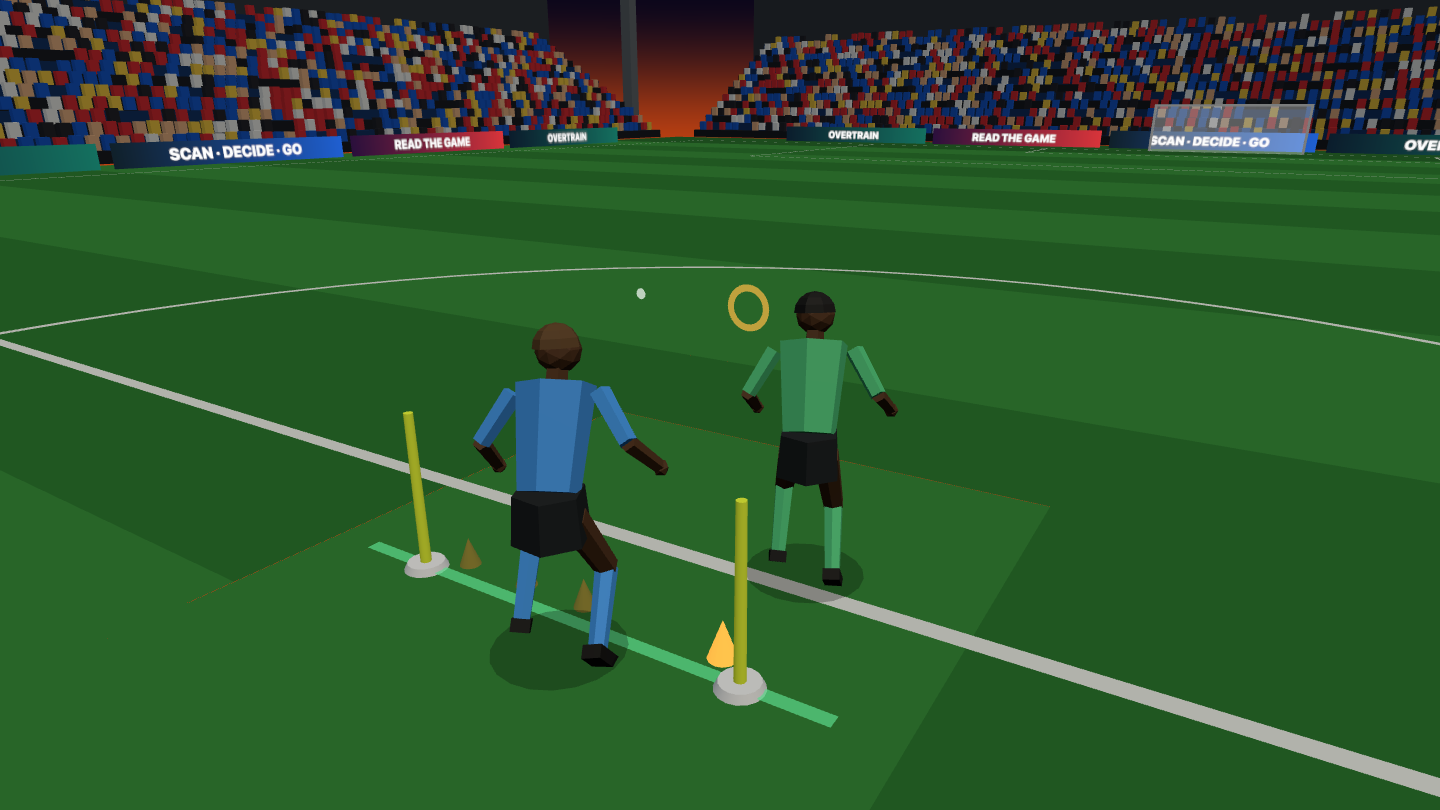
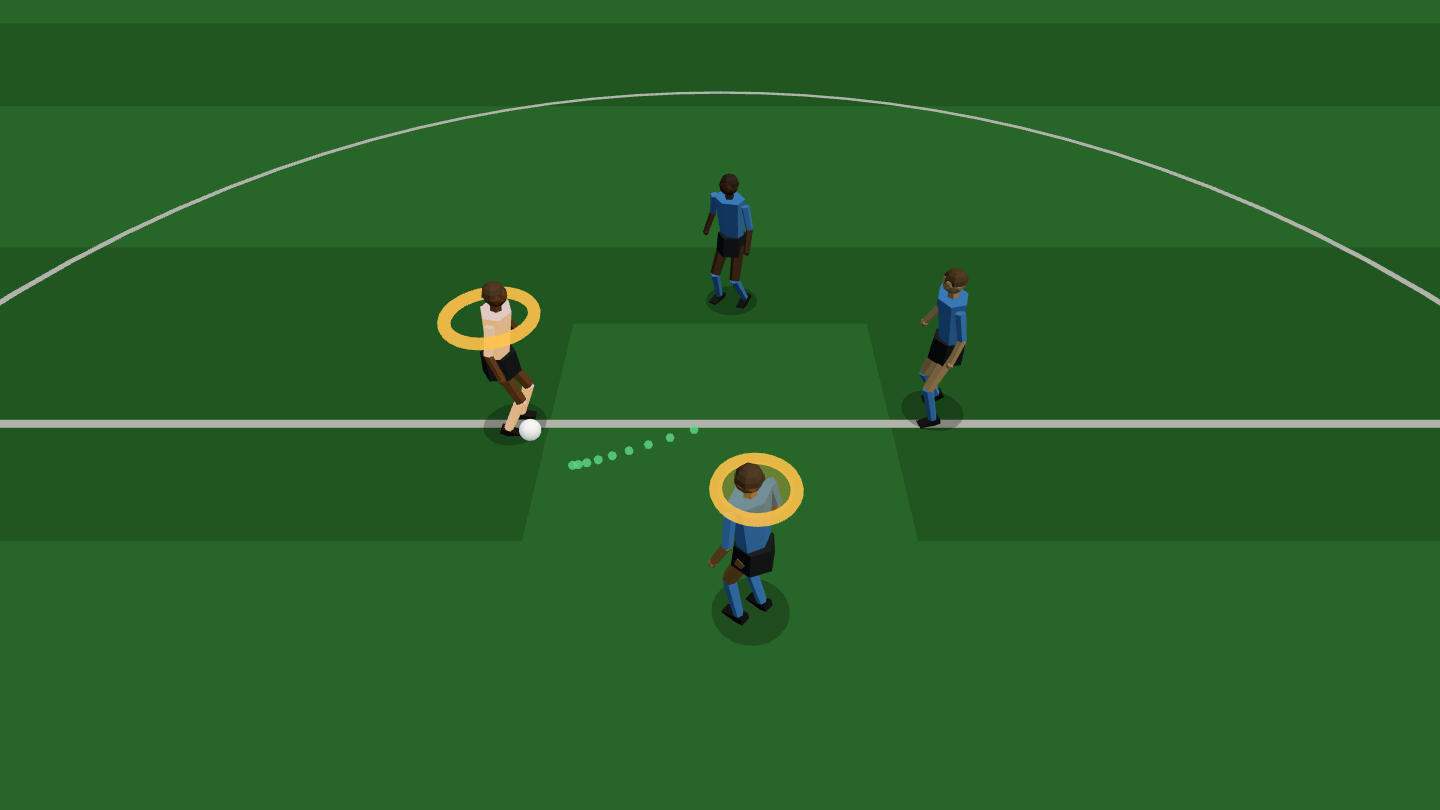
Overtrain is the soccer side of Read The Games, my training-games project. You put on a Meta Quest, the headset shows your real room, and drills happen around you. A defender jockeys you, a rondo moves the ball around you while you cut passing lanes, and a coach shows you a step-over and then watches you copy it. It’s all three.js and WebXR, so the same code also runs on a desktop browser, a phone, and inside a small Mac app.
This post covers one week of that work, from October 1 to 7. It was 110 commits, with Claude Code as my pair the whole way. I’ll go through what we built, the problems that took the longest, how each one got solved, and what I’d do differently. Most of the week went to one deceptively simple question: where is the floor, and how big is the room?
Commits in the week
110
October 1–7
Rounds of play-area fixes
6
Before it stayed put
Ways to play it
4
Quest, desktop, Mac app, phone
Room sizes tested headlessly
2.6–5 m
Nobody leaves the play area
What shipped
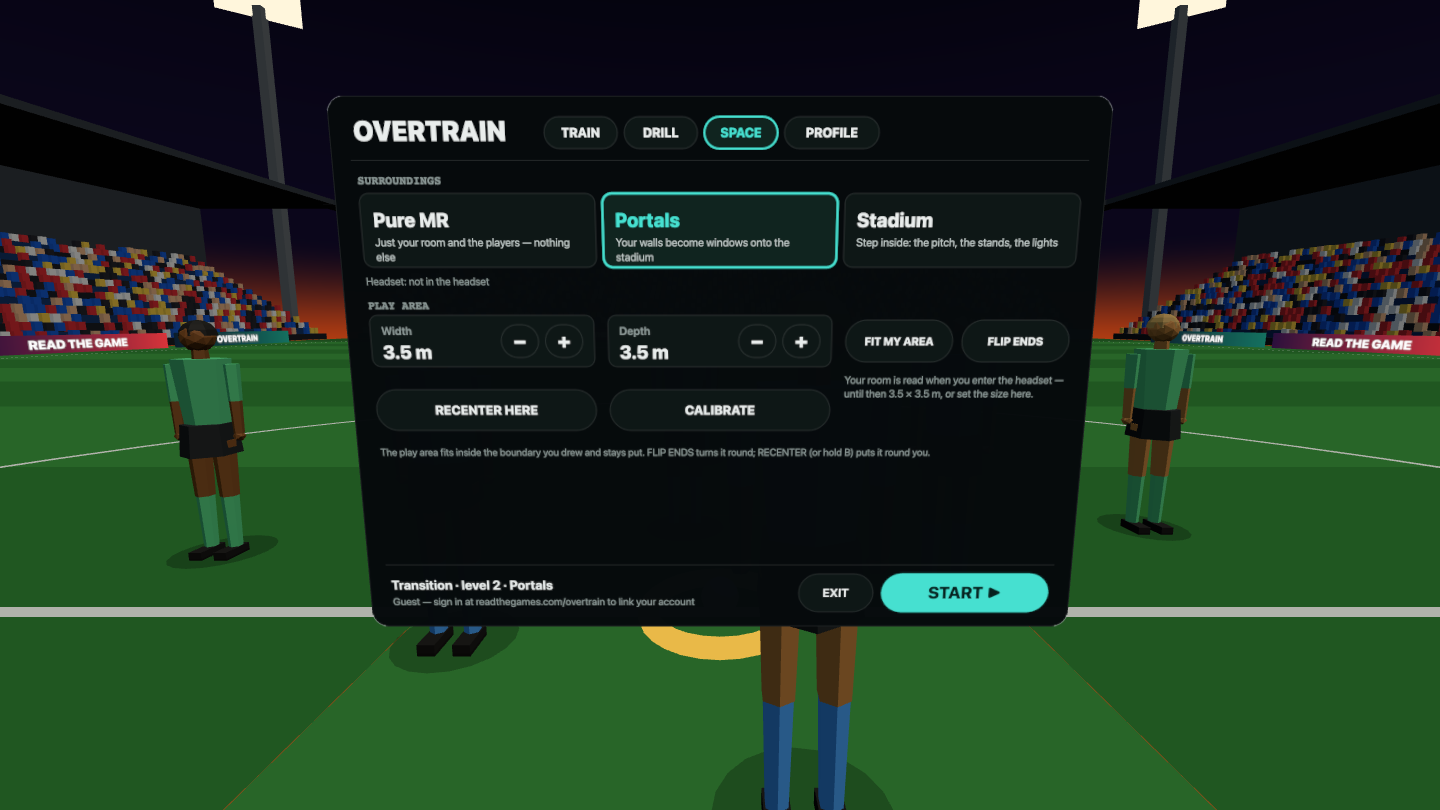
- Overtrain on Quest. It’s a mixed-reality app with a lobby, 12 soccer drills and a sword trainer. You can play in your room (passthrough), in your room with windows onto a stadium, or in a full stadium.
- A Skill Moves drill. A coach shows you a move, you copy it with your head on the beat, and it speeds up from slow to game speed. The last stage puts a real defender in front of you.
- A desktop mode. Every drill plays in a browser with a keyboard, a mouse or a game controller. The Outrider Desk Mac app now loads the live site, so a web deploy reaches it.
- A phone app. Match training runs at readthegames.com/app as an installable full-screen app, with touch controls built for portrait.
- Native-only extras. The Quest wrapper now shares your room scan with the game. It also has a beta ball tracker that uses the headset’s cameras.
The big one: a play area that sits in your real room
A mixed-reality drill only works if the game knows three things: where your floor is, how much space you have, and which way the room faces. If any of those is wrong, the experience is wrong in a way you feel right away. Players look short, the field cuts through your couch, or the whole pitch slowly rotates around you.
I got this wrong six times. Each fix solved the problem in front of it and exposed the next one, so the order is the most useful part.
1. The default box and short players
The first version put a 3.5 m square at your feet, at the browser’s guess of floor height. On the Quest that guess can be off by several centimeters. A footballer standing on a floor that’s 10 cm too high looks like a child.
The fix in 6487938 your real room, a world that stays put, Pure MR, players at full height was to ask for the Quest’s room scan through WebXR plane detection. The game fits the tightest rectangle around the scanned floor, centers the drill in your room, squares it to your walls, and puts it at your real floor height.
2. A world that spun on every restart
That same commit found a worse bug. Every START, resume and countdown re-anchored the ground to your current head pose. If you were looking slightly left when you pressed START, the whole world turned to match. Settings changes did it too.
The rule I took from it: anchor once, then only move the world when the person asks. After the fix, RECENTER (or holding B) is the only thing that moves the field.
3. Drift as the headset corrects itself
The Quest refines its tracking continuously. Every few seconds it decides the floor is 2 cm lower or the room is rotated 1°. A field placed once in the headset’s coordinate space drifts as those corrections land.
12c56e8 the play area is locked to your real floor — no drift made the ground follow a tracked space every frame. It uses the scanned floor plane if there is one, otherwise an XR anchor dropped at the ground. In an emulated test, when the floor moved 3 cm and 2°, the field followed exactly.
4. The native app never shared the room
On the Quest, Overtrain is a Trusted Web Activity: a thin Android app that opens the website full screen in the Quest Browser engine. It turned out the room scan was never reaching the page, because the app hadn’t asked for Spatial data. The code quietly fell back to the default box at your feet. It looked like a geometry bug, but it was a missing permission.
259404d the play area locks to YOUR space and stays put added com.oculus.permission.USE_SCENE and USE_ANCHOR_API to the manifest and requests them at launch. The same commit made the Guardian (the boundary you draw) usable immediately, so you don’t have to wait for a scan. It also stopped tracking resets from re-anchoring anything. If you walk out of your boundary and back, the field stays where it was.
5. Fit the field inside the boundary, not around it
Two things still felt wrong. The field was sized to the room scan’s bounding rectangle, so in an L-shaped space it overlapped furniture. And the scanned floor plane’s own coordinate frame shifts as the headset refines it, which kept swinging the center line around.
93718b5 the play area fits INSIDE the boundary you drew and stays put changed both. The field is now the largest rectangle that fits wholly inside your boundary polygon, at any rotation, with a 30 cm margin. It’s locked to the boundary’s own tracked space, never the floor plane. The fit is about 50 lines:
// For each rotation (3° steps over 0–90°: a rectangle repeats every 90°), rasterize the boundary
// polygon on a 15 cm grid, then find the biggest all-inside rectangle of cells row by row with
// the histogram method (the classic "largest rectangle in a binary matrix").
for (let deg = 0; deg < 90; deg += 3) {
  // ...rotate the polygon, build a column-height histogram per row...
  for (let r = 0; r < rows; r++) {
    for (let k = 0; k < cols; k++) h[k] = inside(cellX(k), cellZ(r)) ? h[k] + 1 : 0
    // largest rectangle under this row's histogram, with a monotonic stack
  }
}
It runs in a few milliseconds on the headset, because a dense boundary is thinned to 64 points first. There’s also a FLIP ENDS button, because the algorithm picks which end faces you once and should never change it on its own.
6. Calibrate before you trust any pose
The last bug showed up in testing on the headset: pressing “check boundaries” sometimes launched the play area far away, or drew it under the floor. For the first frames after the boundary system starts, its pose isn’t settled yet, and the code was using the first one it got.
596ece3 calibrate first, then place the play area on your real floor near you added three guards:
- A calibration step. When you enter, a CALIBRATING panel asks you to stand tall, look straight ahead, and hold still for about 2 seconds. The median eye height over the real floor sets your height for the drills.
- A stability check. The boundary is only used once its pose reads the same, within 1 cm, for 20 frames in a row.
- A sanity check. A fit more than about 4 m from you, or at an odd height, is rejected. The game puts the fitted size around you instead.
7. Then make every drill respect the space
Getting the area right is half of it. The drills then have to stay inside it. Two examples from the end of the week:
- Skill Moves had hard-coded distances. The demo defender stood 3.4 m out, which is outside a 2.6 m room. All its spacing now scales with your play area. A headless run in 2.6, 3.5 and 5 m rooms checks that nobody steps outside it.
- Defensive Rondo had the attackers inside your area. You’re the defender in the middle, cutting passing lanes, so the attackers belong on the edges. They now stand just outside each side. Moving them broke the game at first: a loose first touch could land where the receiver’s leash couldn’t reach, and play froze. That only showed up in the headless test, which checks that passes still flow after the change.
Testing a headset app without wearing the headset
Putting the headset on and taking it off costs a minute or two each time. Over a week, that adds up to hours. Three things cut that down.
An emulated Quest in the browser
Meta’s Immersive Web Emulation Runtime (IWER) fakes a Quest 3 in a normal browser. I inject it with Playwright ahead of the page’s own scripts, and the page enters immersive AR as if it were on the headset. I can move the head, press controller buttons and read the result. Most of the boundary and anchor fixes above were checked this way first.
A stand-in player
The Skill Moves drill scores you on your head movement: a lean, a dip, a bound to a pole. To test the scoring without moving my own head, I added a mock player (?mock=1). It copies the coach a beat late and misses about 30% of reps on purpose. It found a bug on its first run: every rep failed. The stand-in’s delay buffer was keyed on a clock that reset at each rep, so it froze on a stale sample. A human tester would have reported “the scoring feels broken” without finding the cause.
Headless simulation harnesses
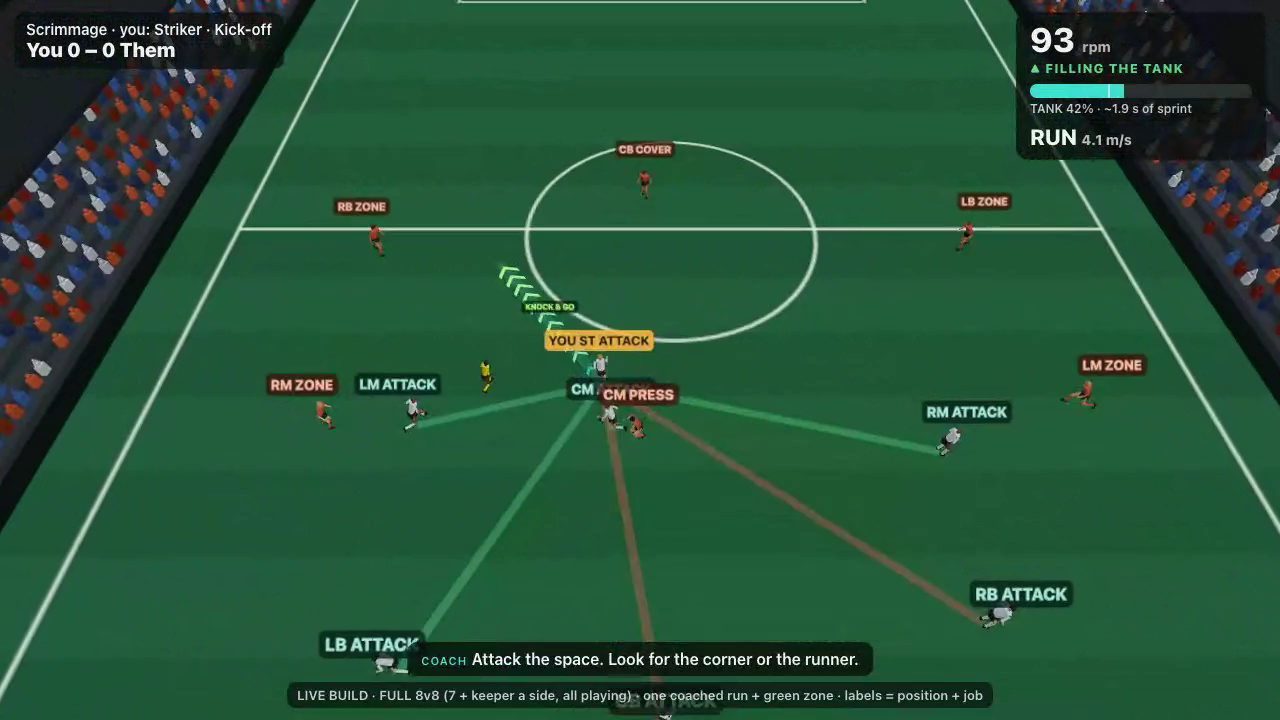
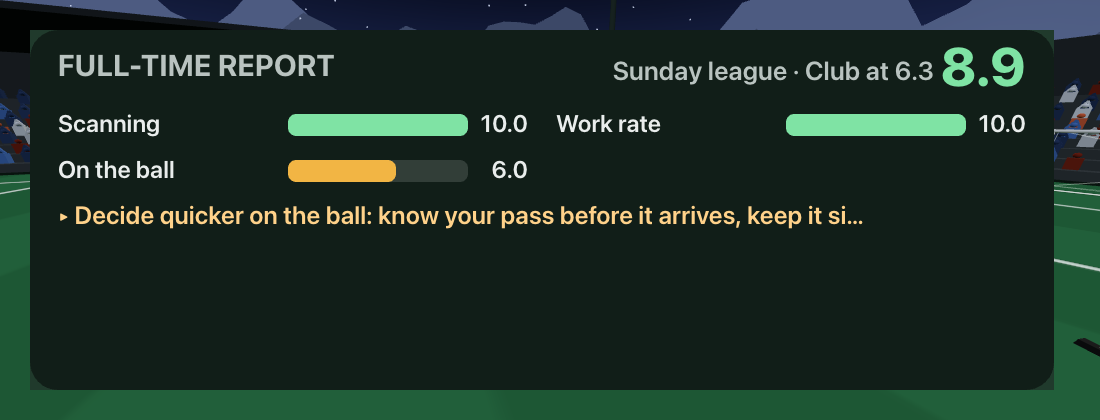
The match game runs on a fixed 60 Hz simulation with no rendering dependency, so it runs in Node at many times real speed. Small scripts play whole scrimmages with bots of different skill. They print scoring rates, how often the coach’s advice was stale, and now the player rating. When a bot that stands still rates higher than one that plays well, the grading is wrong, and I find out in seconds instead of after a session on the bike.
Desktop mode, and keeping it in sync
Two desktop problems took real time this week.
The Mac app was frozen in time. Outrider Desk is an Electron app that bundled a copy of the site. Web deploys never reached it. The user, reasonably, asked why their changes weren’t there. 078929d Outrider Desk updates itself switched it to live-first. It loads readthegames.com from its own app:// origin on each launch, caches what it loads, and falls back to the bundled copy offline. Keeping one origin meant saved settings and logins carried over.
Head-tracked drills need a keyboard version. Skill Moves reads your head. On desktop there’s no head, so the arrow keys now lean and dip it, WASD walks you, and Space commits. I learned this one the hard way: I shipped Skill Moves to the headset first, and the user couldn’t try it in the browser. The rule now is that a new mode isn’t done until it’s playable with a keyboard. Game controllers work too. In Outrider, the bike game, connecting one turns standing mode off by default, because nobody can hold a handlebar and a controller at once.
The phone app
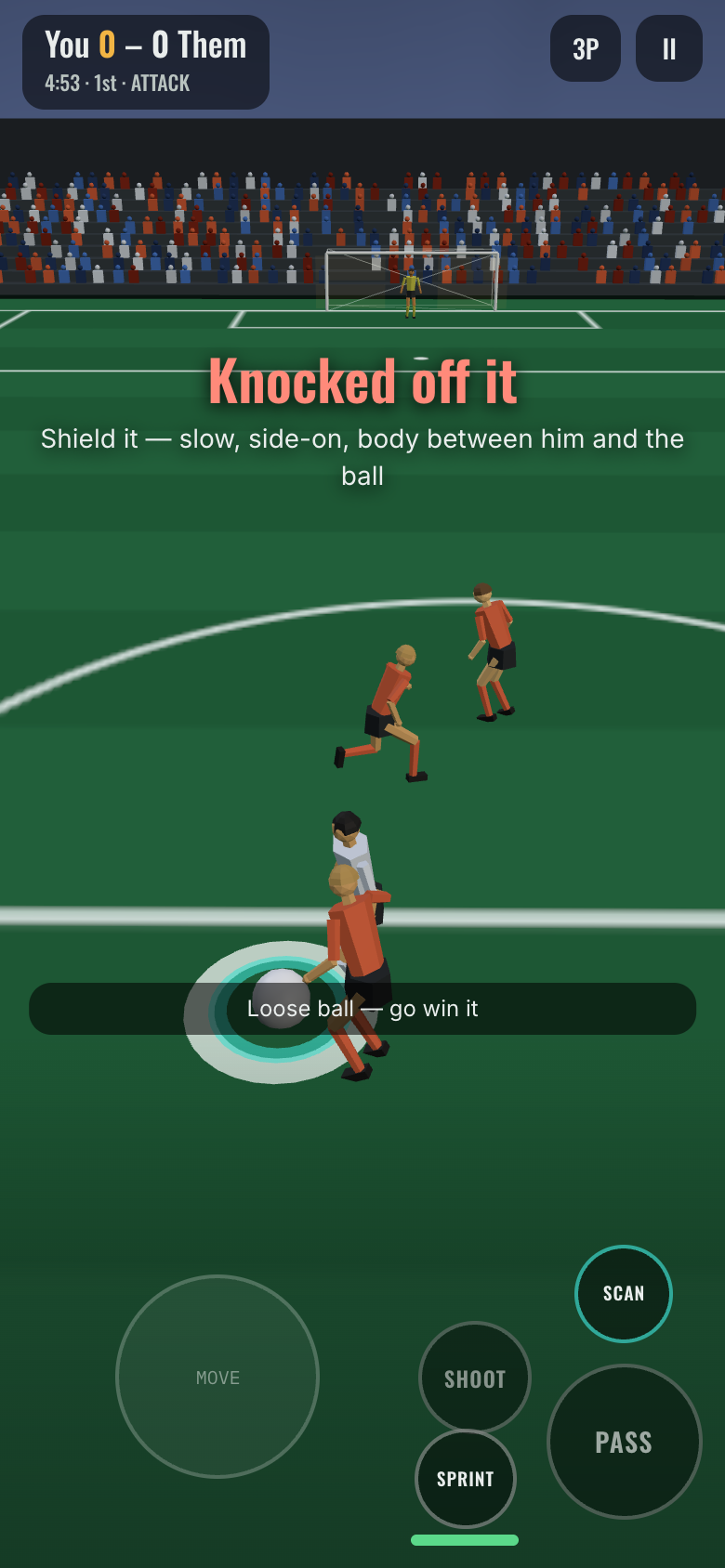
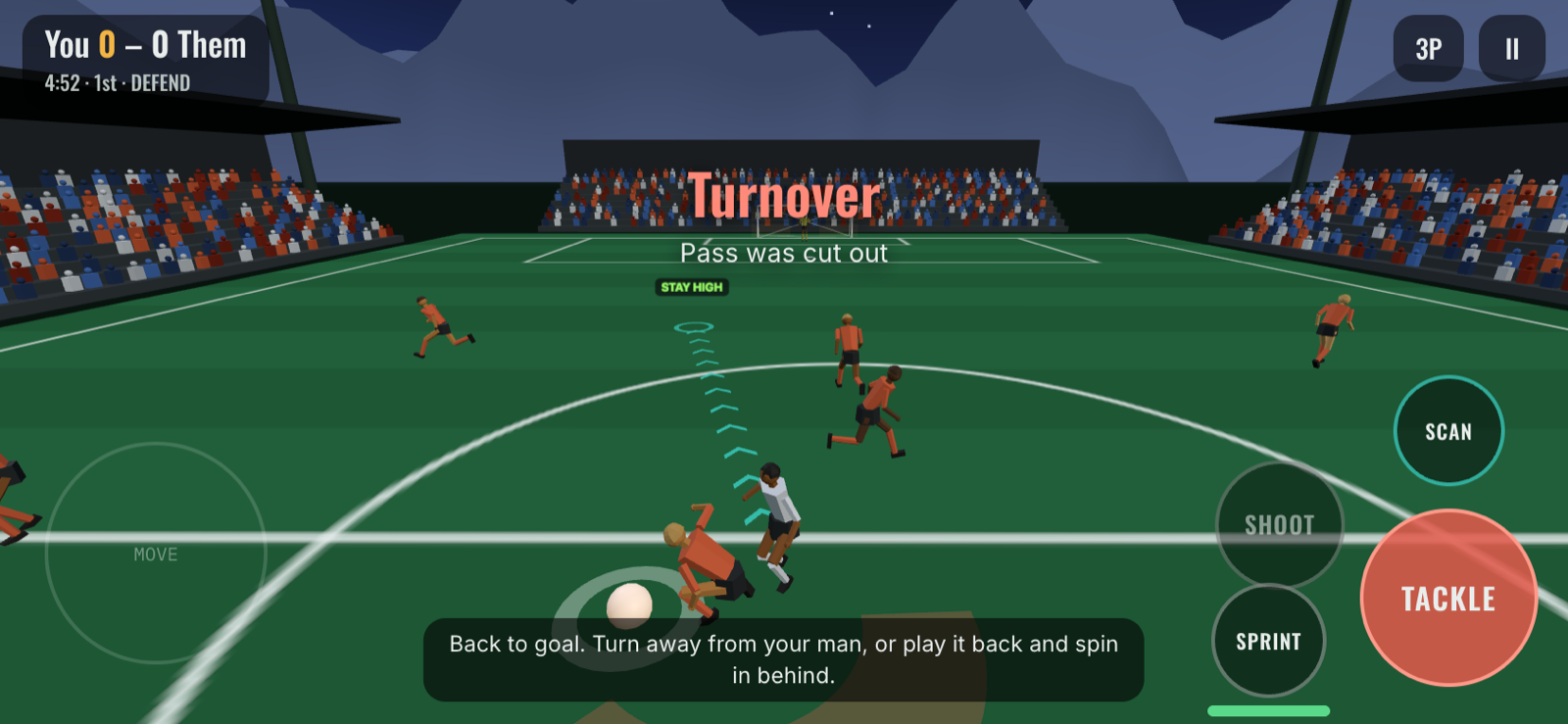
Match training also runs on a phone, at readthegames.com/app. It uses the same simulation and the same view code as the bike version. What changed is the input and the layout:
- Portrait first. The pitch runs to the bottom edge and the controls float over it on a see-through fade, so the game gets the whole screen.
- Hold to move. You keep a finger where you want your player to run, and a big arrow under him shows the direction. A finger right on your player makes him stand still, so a resting thumb doesn’t drag him around.
- Sprint is a tap. A tap gives a burst of about 2 seconds. In the first version it did nothing unless you were already moving, which made it look broken.
A note on WebAssembly, since people ask. The phone app draws with plain three.js and WebGL. The Rust/WASM renderer from my Outrider post handles the static world on the Quest and on desktop, where the scenes are big enough for draw calls to matter. On the phone the scene is small, so the plain path is enough.
Native-only: the room, and a ball tracker
Some things a web page can’t do on the Quest. The browser has no access to the headset cameras, for example. The native wrapper fills those gaps with a pattern I’d already used for the bike: a small Android service that talks to the page over a WebSocket on 127.0.0.1.
The ball tracker is the newest use of it. The Overtrain app reads the passthrough camera through Meta’s Passthrough Camera API and runs an on-device detector for the COCO “sports ball” class. It sends only the ball’s position in the image, the lens data and the camera’s pose to the game. The game turns that into a point in your room. The ball’s known 22 cm size gives the distance, and the head pose from the moment the frame was captured places it. A ring then follows your real ball. It’s a beta, and honestly untested on the headset as I write this; the camera’s coordinate conventions are my best reading of Meta’s samples.
What went well
- One simulation, many front ends. The match game is one fixed-step simulation used by the bike, the phone and the headless harness. A fix in one place reached all of them.
- Testing without the headset. The emulator, the stand-in player and the headless harnesses caught most bugs before a human had to.
- Small commits with long messages. Every commit says what changed and why in plain words. When the play area broke for the fifth time, the history explained the first four fixes.
- Deploys that reach everything. The Quest apps load the live site, and now the Mac app does too. One
make deployupdates every device.
What to improve
- Treat spatial data as untrusted input. I trusted the first floor guess, the first boundary pose and the first room scan. Each one cost a round of fixes. Next time I’d validate and stabilize every pose from day one: wait for it to settle, check it’s near the player, and keep a fallback.
- Check the native permissions before debugging geometry. The missing Spatial-data permission looked like a math bug for a while.
- Build the stand-in player first. It found a bug in minutes that would have taken many headset sessions. It should have existed before the scoring code did.
- Browser parity should be a rule, not a reminder. A mode that only runs in the headset slows down everything else about building it.
- Review clips cost too much attention. Recording a 20-second clip from a headless browser kept failing in small ways. Moving it to a background job, and reporting only when it fails, made the loop much calmer.
A checklist for mixed-reality play areas
- Ask the native app for the room data (on Quest,
USE_SCENEandUSE_ANCHOR_API) before debugging any geometry. - Anchor the world once. Only a deliberate recenter should move it.
- Lock the world to a tracked space (floor plane, boundary or anchor) every frame, not to the headset’s base space.
- Fit the play area inside the boundary polygon, not around it, and keep a margin.
- Wait for poses to settle before using them, and reject placements that are far away or at an odd height.
- Calibrate the person’s height on a real floor before placing anything around them.
- Make every activity scale to the space it gets, and test it headlessly in small, medium and large rooms.
You can try Overtrain at readthegames.com/overtrain on a Quest or in a desktop browser, and Match training on your phone at readthegames.com/app. If you’re building for mixed reality and fighting the same floor-and-boundary problems, I’m happy to compare notes: /hire.